




Vídeo
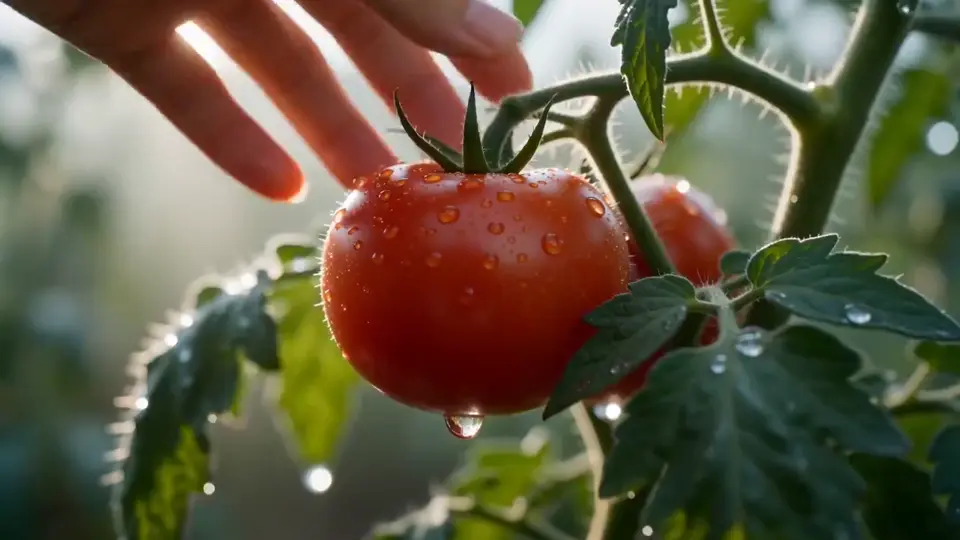
Imagem para Vídeo
Comece com uma imagem parada e deixe um modelo de vídeo adicionar movimento, câmera e atmosfera, mantendo o visual da sua imagem.
Testar agora Hushgen
Envie imagens de referência para fixar o assunto e o estilo, adicione um prompt de movimento e clima e gere um vídeo visualmente consistente.
Um único saldo de créditos funciona com todos eles.
Modelos de vídeo
Os modelos são fornecidos pelos seus desenvolvedores por meio de serviços de API licenciados. A Hushgen é uma plataforma independente; os nomes dos modelos pertencem aos seus respectivos donos. Aviso legal
Ferramentas de IA
Switch to another tool any time. Each one lets you pick from several AI models and uses the same credits.
Comece com uma imagem parada e deixe um modelo de vídeo adicionar movimento, câmera e atmosfera, mantendo o visual da sua imagem.
Testar agoraDescreva uma cena em uma frase ou em um roteiro curto e receba um clipe para refinar tomada por tomada.
Testar agoraEnvie imagens ou clipes de referência para fixar um personagem, produto ou estilo visual antes de o modelo começar a gerar.
Testar agoraContinue de onde um clipe termina e adicione os próximos segundos com o mesmo assunto, enquadramento e clima.
Testar agora Imagem
Escreva um prompt e receba thumbnails, fotos de produto, artes conceituais ou pôsteres, com o Seedream e outros modelos de imagem à escolha.
Testar agora Imagem
Troque o fundo, remova um objeto ou mude o estilo de uma foto dizendo à Hushgen, com suas palavras, o que mudar.
Testar agoraUpload images that show the subject, style or composition you want, then describe the motion. Hushgen uses them to keep every shot visually on track.
More control over how your subject and style carry from frame to frame.
Upload 1-3 reference images to guide the visual style, color palette, subject, and composition of the generated video.
Veo 3.1 Reference to Video uses image references only. Video uploads are not supported by this model.
Use the first reference image as the strongest subject cue, then add up to two more optional images for style and composition context.
Add a text prompt to describe the video style, motion, and mood. Combine with references for precise creative control.
Describe the action, framing, and mood directly in your prompt. Prompt expansion is not submitted for Veo 3.1 Reference to Video.
Download your generated video in full resolution — ready for social media, presentations, or any professional use.
Upload references, add a prompt, generate.
Upload 1-3 reference images that represent the subject, visual style, and composition you want in the output.
Describe the video style, motion, and mood in plain text. The Veo 3.1 request is submitted with your prompt and reference images.
Your style-consistent video is usually ready in a few minutes. Download it in full resolution and use it anywhere.
Any project where the same face, product or look has to stay recognizable.
Generate videos that match your brand's visual identity by using existing brand assets as style references.
Apply the visual style of your reference images to new video content — consistent color grading, lighting, and aesthetic.
Use character or product images as subject references and guide the intended movement through your prompt.
Combine multiple reference styles to explore new visual directions and generate unique, unexpected results.
Create on-brand video content for Instagram, TikTok, and YouTube using your existing visual assets as guides.
Generate style-consistent video sequences for pre-visualization, mood boards, and concept development.
How to pick and combine images for steadier, cleaner results.
Reference images with similar lighting conditions produce more cohesive output. Mixing bright outdoor and dark indoor references can create inconsistent results.
The AI blends the style of all your references. For the most consistent output, use references that share a similar color palette, contrast level, and visual aesthetic.
Use clear, focused images with one main subject or style direction. Describe motion directly in the prompt.
Place the most important subject or style in Image 1. Additional images should support the same visual direction rather than introduce conflicting cues.
Use up to three aligned images to guide subject, style, and composition. Use the prompt to describe motion and camera behavior.
When working with complex or nuanced reference styles, write the key style, motion, and camera details directly in your prompt.
Teams and creators who need their own visuals to lead the generation.
Generate videos that match your brand's visual identity by using existing brand assets — photography, style guides, and campaign videos — as references.
Use image references plus detailed prompts to guide motion style and character animation concepts.
Generate style-consistent pre-visualization footage, mood board videos, and concept sequences using reference materials from the production.
Create on-brand video content for clients by using their existing visual assets as style references — consistent output at scale.
Generate cinematic sequences and environment videos that match the visual style of your game using concept art and image references as guides.
Explore and validate visual directions quickly by generating reference-guided video concepts before committing to full production.
Consistency, control and a clear view of what each generation costs.
Use your own reference materials to ensure the generated video matches your exact visual style and brand identity.
Most videos finish within a few minutes, depending on the model, length and resolution. Paid plans get priority in the generation queue.
Your prompts and files are processed securely and sent only to the AI model provider that generates your result. We never sell your data.
Credit-based pricing means you only pay for the videos you actually generate — no monthly minimums.
How references shape AI video, answered.
For Veo 3.1 Reference to Video, upload 1-3 reference images (PNG, JPG, WEBP). This model does not support reference video uploads.
Image 1 is the strongest subject cue for the generated video. Additional images can reinforce the same subject, style, or composition.
No. Veo 3.1 Reference to Video requires images only: minimum 1, maximum 3 reference images. Video uploads are not supported on this model.
The prompt describes the video style, motion, and mood in plain text. It works together with your references — the references guide the visual style while the prompt guides the content and action.
Prompt expansion is not submitted for Veo 3.1 Reference to Video. Write the important action, style, camera, and mood details directly in your prompt.
Video length depends on the model and settings selected. Available duration options are shown before you generate.
Credit cost depends on the model, resolution, and duration selected. The required credits are shown before you generate, so there are no surprises.
Yes. Your prompts and files are processed securely and sent only to the AI model provider that generates your result. We do not sell your data or use it to train our own models. See our Privacy Policy for details.
Paid plans include commercial usage rights and watermark-free output for everything you generate. Free plan outputs include a watermark. See our Terms of Service for details.
For most use cases, 1–3 focused reference images produce the best balance of style consistency and generation quality. Too many conflicting references can dilute the style signal.
Technically yes, but be mindful of copyright. Using copyrighted material as a reference to generate commercial content may raise legal issues. For commercial projects, use your own assets or royalty-free reference materials.
Text-to-video generates content purely from a written description, giving the AI full creative freedom. Reference-to-video uses your uploaded images to constrain the visual style and subject direction, producing output that is consistent with your specific reference materials.